Sharing a bug report.
When our analysts review your phone, they work from an Android bug report — a bundle of system logs your phone can produce on its own. This guide walks you through making one and sending it to Kaido. It takes a few minutes.
Your report is encrypted on your phone before it leaves, to a key only the Kaido analysis team holds. We cannot read it in transit or at rest, and it is deleted after 30 days. No account, no name — just a case ID.
You’ll need a Forensic analysis on your account to send one. You can buy it in the app, or from the Kaido app listing.
- 1
Turn on Developer options
Bug reports are created by a tool Android already includes. You switch it on once.
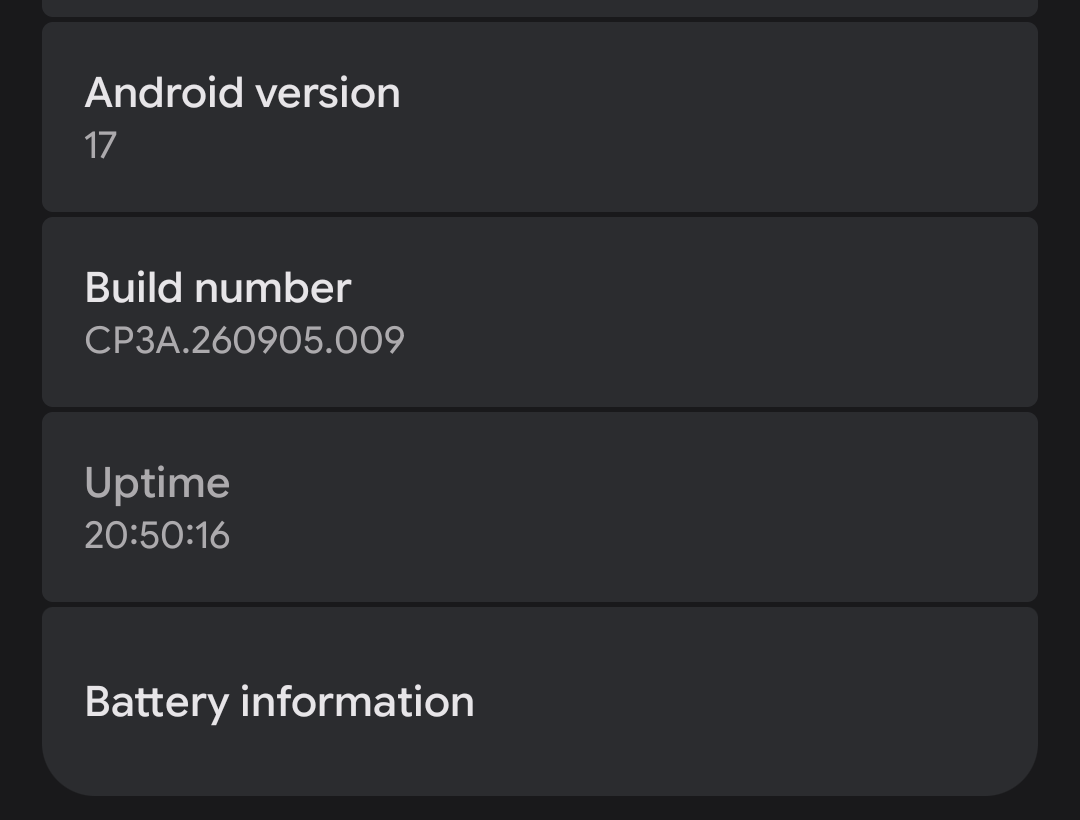
Open Settings → About phone, find Build number at the bottom, and tap it seven times. Enter your PIN when asked. You will see “You’re now a developer”.
- 2
Open Developer options and tap Bug report
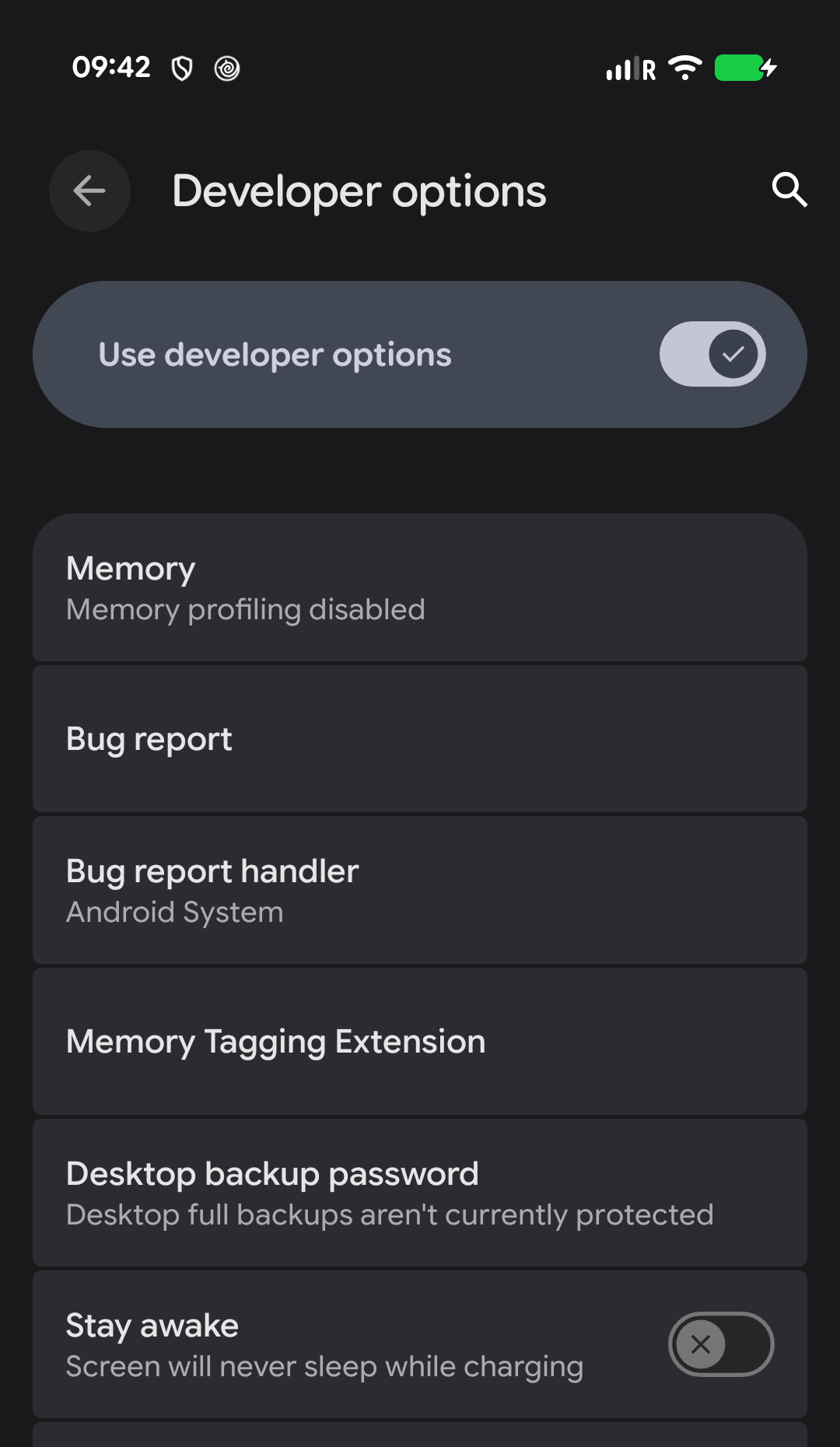
Go to Settings → System → Developer options, then tap Bug report.
On some phones Developer options sits directly under Settings, or you can search Settings for “Bug report”.
- 3
Choose Full report
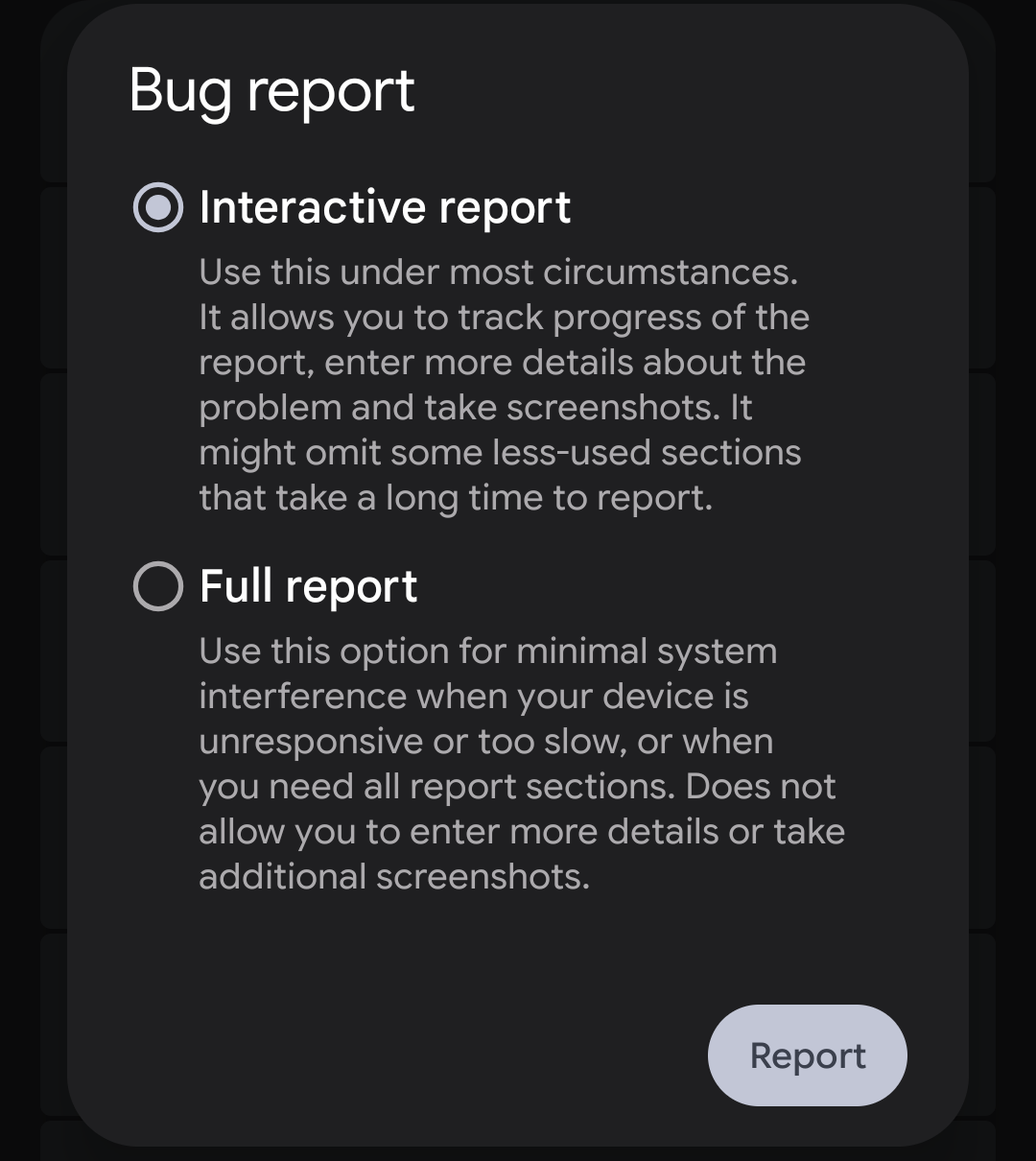
Pick Full report, then tap Report. (Interactive report works too — Full is simplest and needs nothing more from you.)
Your phone now gathers its logs. This usually takes one to three minutes; you can keep using the phone while it works.
- 4
Tap the notification when it’s ready
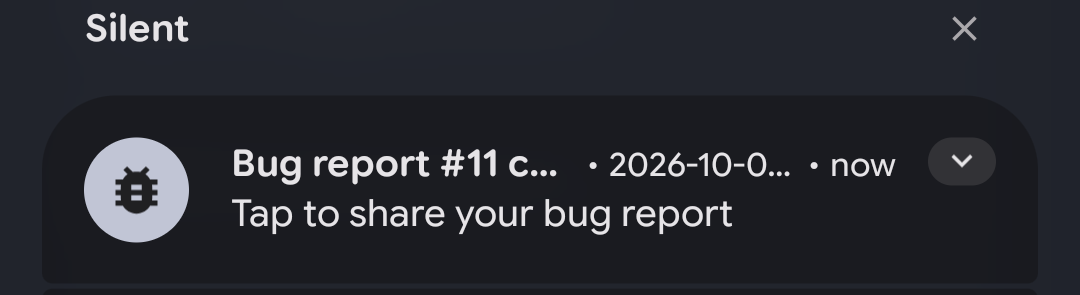
When it finishes, a notification appears: “Bug report captured. Tap to share your bug report.”
Tap it. If you miss it, swipe down from the top of the screen to find it again.
- 5
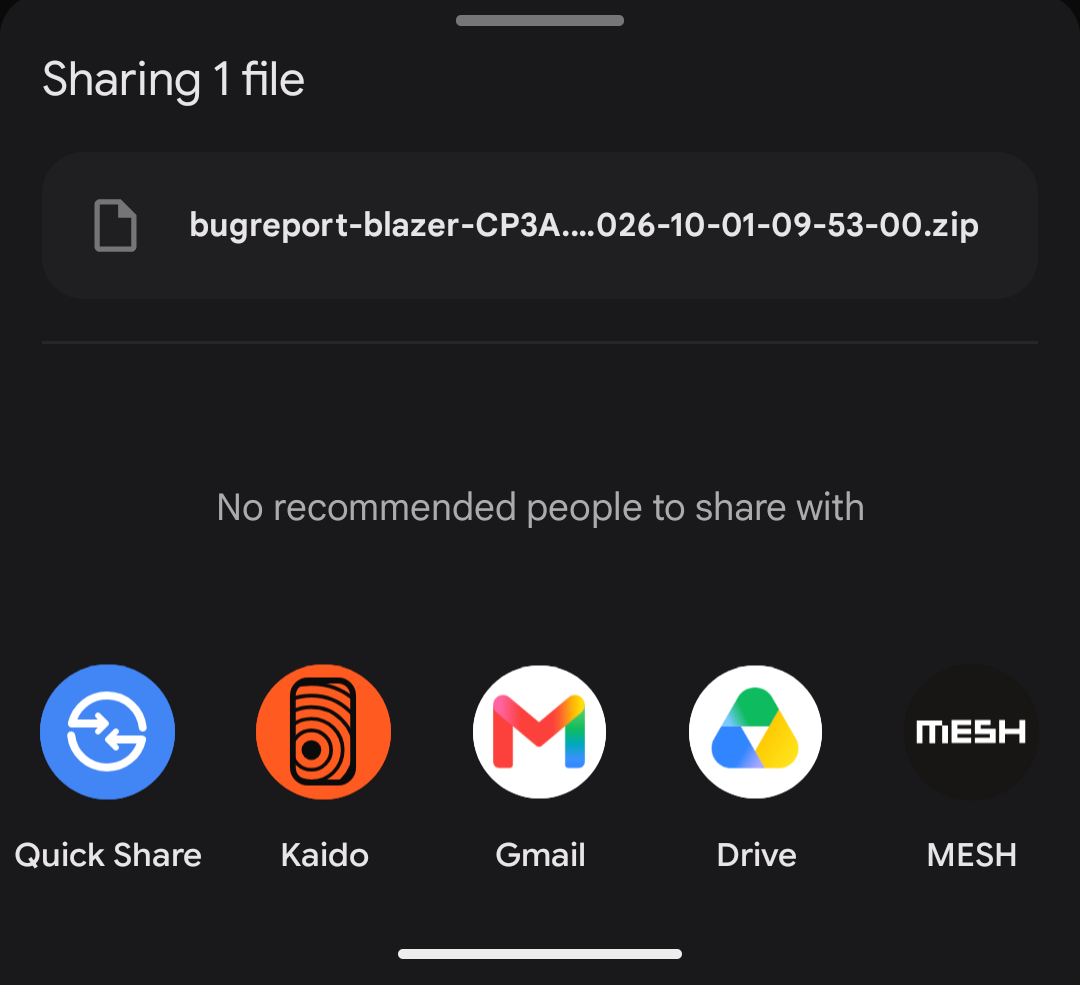
Share it to Kaido
Android shows the share sheet. Choose Kaido from the list of apps.
If Kaido isn’t in the first row, swipe up on the sheet to see every app.
- 6
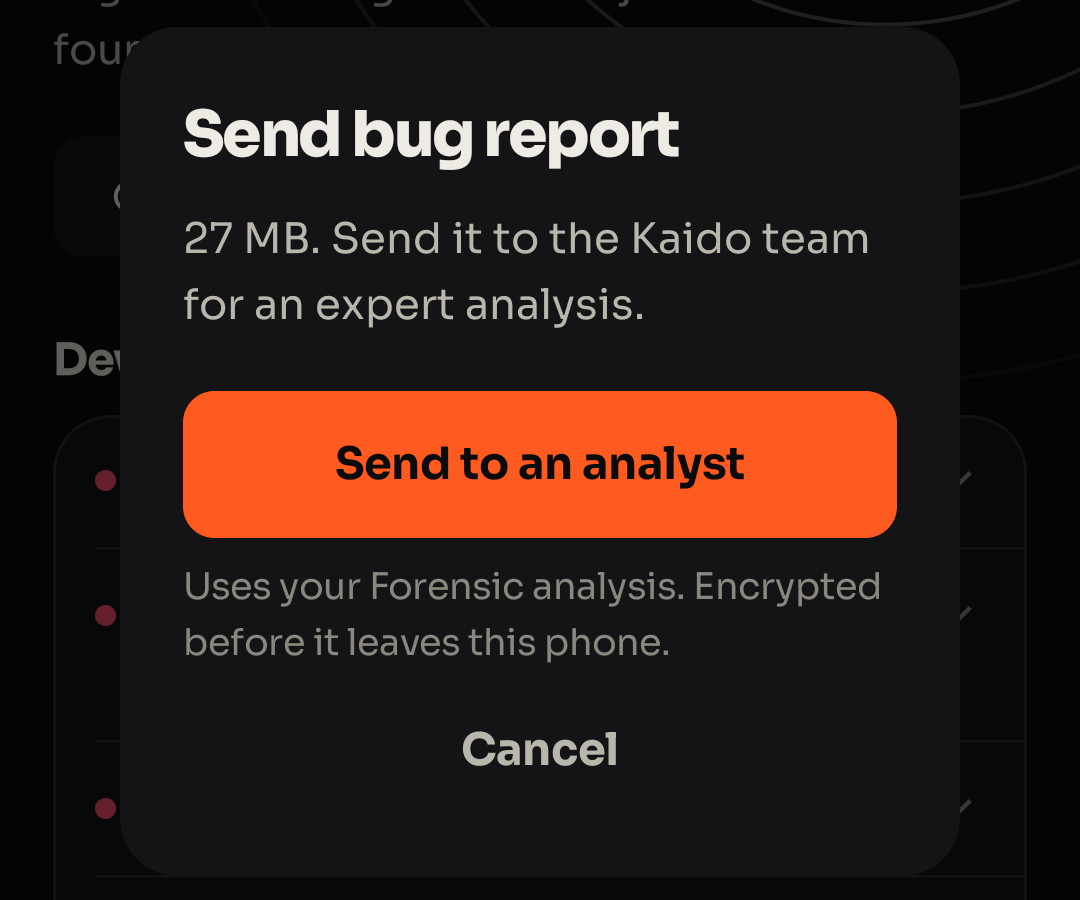
Choose “Send to an analyst”
Kaido opens on the report and shows its size. Tap Send to an analyst.
This uses the Forensic analysis on your account. If you don’t have one yet, Kaido offers it to you here instead.
- 7
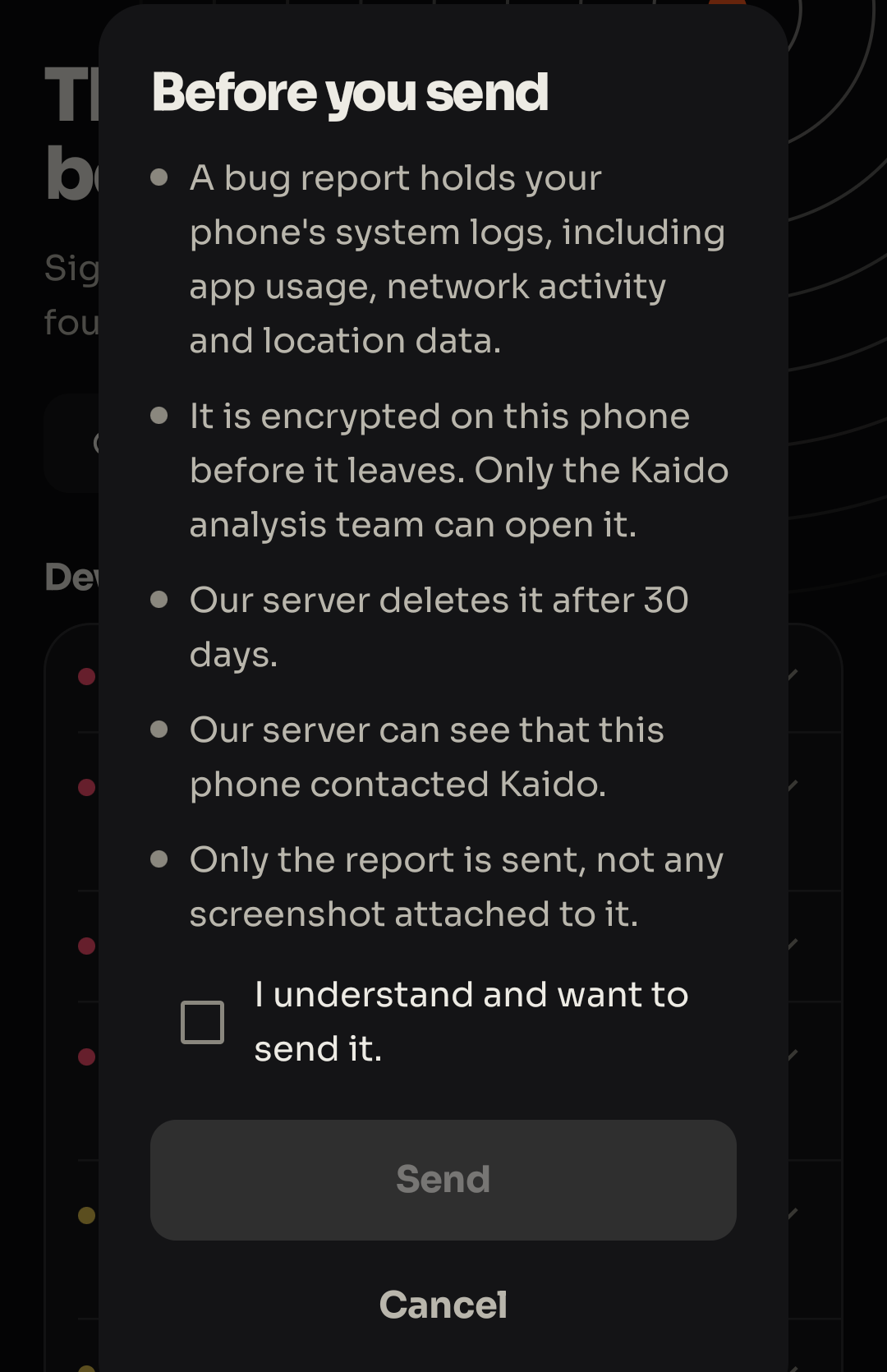
Read the summary and confirm
Kaido tells you plainly what a bug report contains and what happens to it: it is encrypted on your phone before it leaves, only the Kaido analysis team can open it, and the server deletes it after 30 days.
Tick “I understand and want to send it” and tap Send. The report is encrypted on your phone, then uploaded.
- 8
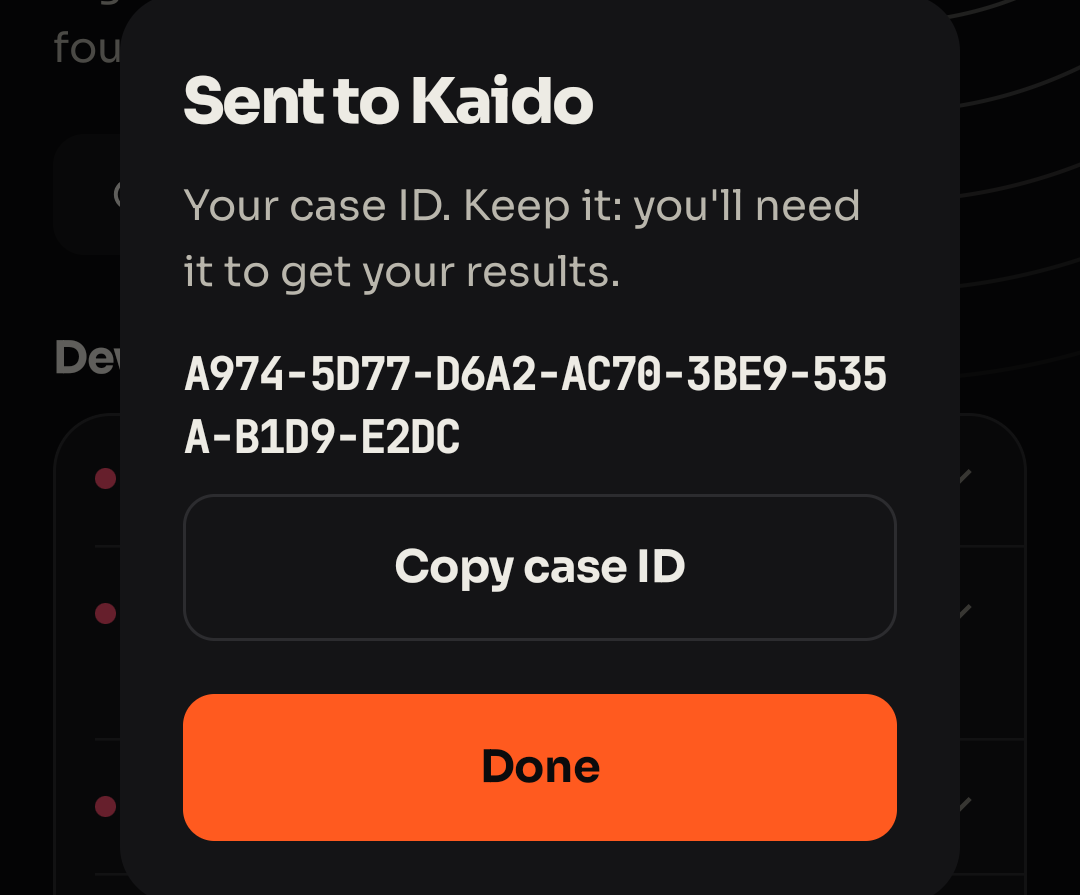
Keep your case ID
You’ll see “Sent to Kaido” with a case ID. Tap Copy case ID and keep it somewhere safe.
That ID is how you ask about your review and how you can have the report deleted — we hold no account or name for you.
What happens next
An analyst examines your report for the traces an exploit leaves behind and writes up what they find in plain language. We return the findings against your case ID. Keep that ID — it is the only thing that links the report to you.
If something goes wrong
- “Upload interrupted.” Check you have a working connection and tap Try again. The encrypted report stays on your phone until it is sent, so a retry never re-does the work.
- “The report is too large.” Bug reports are usually 20–60 MB. If yours is larger than the server accepts, make a new one on Wi-Fi and send that.
- Can’t find Developer options? It only appears after you tap Build number seven times (step 1). Search Settings for “Bug report” to jump straight there.
Deleting your report
You can have your bug report and case deleted at any time. Email hello@kaidosecurity.com with your case ID. Reports are deleted automatically after 30 days regardless.